Configurator
The configurator is the editor for your decks. It runs in the PC's browser and is served by
DroidDeck itself — open it from the tray (Open in browser) or go to
http://localhost:4787/.
Use it on the PC itself
The configurator signs in automatically only from the same machine (localhost). Opened from
another device on the network, the same address shows the deck in the browser
instead, which needs pairing.
Layout
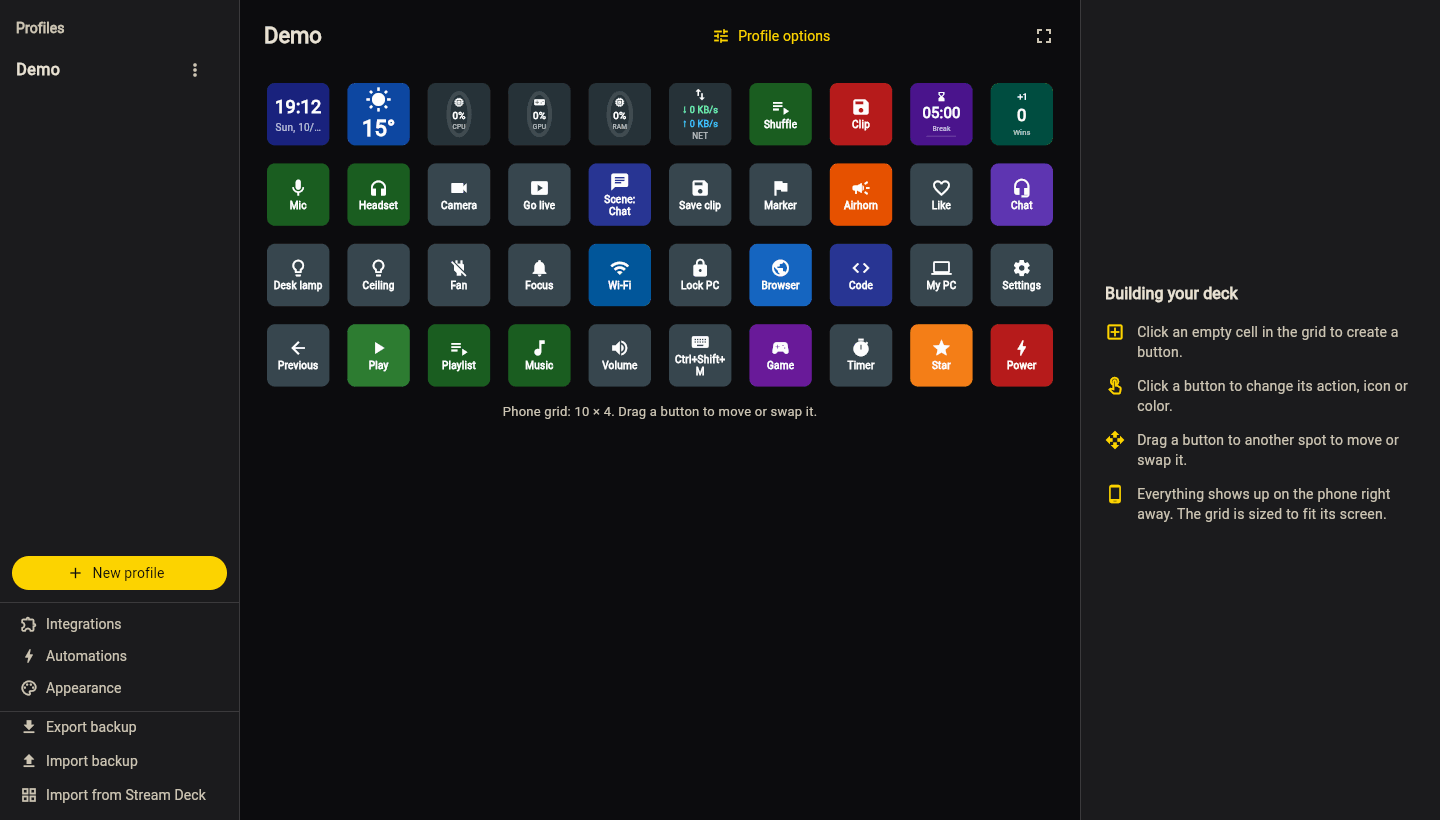
The screen has three panels:
- Profiles: your list of decks. New profile creates one; the trash icon deletes it after confirmation.
- Grid: the buttons of the selected profile. Click a cell to select it.
-
Properties: label, icon, colours and the action of the selected button. Click Save.
-
Drag and drop a button to move it. Dropping it on an occupied cell swaps the two.
- The pencil icon renames the profile.
- The sidebar also opens Integrations and Automations, and has Export backup, Import backup and Import from Stream Deck.
Every save is pushed to the phone immediately.
Grid size
The grid size is decided by the phone: it calculates how many buttons (about 96 px each) fit on its screen and reports it to the PC. Rotating the phone updates the grid. The configurator shows the same grid, so what you edit matches what you see on the phone.
Profiles, pages and folders
- On the phone, each profile is a page — swipe sideways to switch.
- A button with the Open profile action opens another profile as a folder. Use a Back button or the back arrow in the title bar to return.
- New profiles are created in the configurator. If you have none, a Default profile is created automatically.
Editing on the phone
You can also edit on the phone itself:
- Tap a button to run it; long-press to edit it.
- Tap an empty cell to create a button there.
- The gear icon in the title bar renames the profile.
Keyboard shortcuts, programs and multi-actions are edited on the PC
Buttons that send keys or open programs can run anything on your PC, so they can only be created or changed in the configurator on the PC itself. On the phone you can still use them and change their label, icon and colour; the editor shows a lock with what the button does.
Button properties
| Property | Description |
|---|---|
| Label | Text shown on the button. Media and soundboard buttons fill it automatically when empty. |
| Icon | One of the built-in icons, or a custom image from your gallery (reduced to 512×512, stored in the profile). An animated GIF is kept as is and plays on the button; up to 2 MB. |
| Background colour | Button colour. |
| Active colour | Colour used when the button's state is "on" (muted mic, light on…). Available for actions with live state and for two-state buttons. |
| Action type | What the button does — see Buttons & actions. |
| Show on button | Shows a live monitor or information (clock, weather…) — see Monitors & info. |
| Two states | Toggle on each tap, and the label and icon while active — see Two states. |
| Size | How many cells the button takes (width × height, up to 4 × 4) — see Size. |
Backup
Use Export backup in the sidebar to save every profile, with its images, as one .droiddeck
file, and Import backup to bring it back on this or another PC. The phone can export one too.
See Backup.
Behind the scenes, profiles are JSON files in %AppData%\DroidDeck\Profiles\; see
Files & settings.