Browser & USB
Besides the Android app over Wi-Fi, there are two other ways to use the deck: in a browser on any device (iPhone, iPad, another PC) and over a USB cable with an Android phone.
Deck in the browser
The PC serves the deck itself, so an iPhone, an iPad, a tablet or another computer on the same network can use it from the browser, without installing anything.
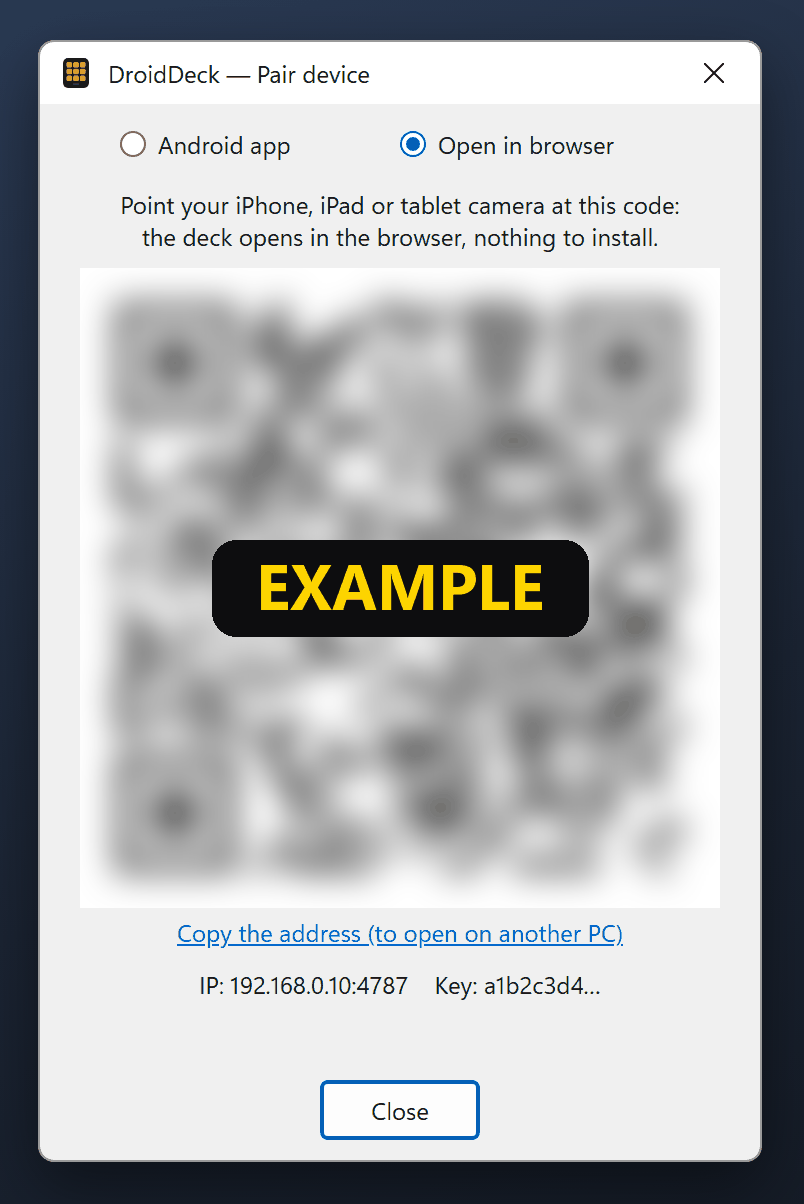
- On the PC, right-click the tray icon → Pair device (QR)…: the pairing window opens.
- At the top of the window, pick Open in browser. The QR code changes.
- Point the device's camera at the code and open the link.
The deck opens with your buttons. The link carries the API key: the page saves it in the browser and removes it from the address bar, so the address you see (and bookmark) no longer has it.
- No camera? Open
http://<PC IP>:4787/on the device and type the key shown at the bottom of the pairing window. Copy the address (to open on another PC) in the same window copies the full link, handy for opening the deck on another PC. - Grid: the browser uses the same grid as your phone, so the buttons are in the same places. If no phone has connected yet, it uses the default 3 × 5 grid.
- Full screen: the full-screen button in the bottom-right corner hides the browser's bars (on Android and desktop browsers).
- iPhone and iPad: Safari has no full-screen mode for pages. Use Share → Add to Home Screen: the deck gets its own icon and opens without the address bar, like an app.
- On the PC itself:
http://localhost:4787/?deckopens the deck view instead of the configurator, with no pairing needed. - To unpair a browser, open Settings in the deck and tap Forget. If the PC's key changes, the page asks you to pair again.
Same rules as the phone
The browser deck behaves like the Android app: it runs every button, but buttons with privileged actions (keyboard shortcut, open program, script, HTTP request) can only be created or changed in the configurator on the PC itself. The page is plain HTTP on your local network, like the app's connection.
USB cable (Android)
With a USB cable, the phone talks to the PC through the cable instead of the network. It works with no Wi-Fi at all, on networks that isolate devices from each other and with the firewall closed, and has a little less latency.
- On the phone, turn on USB debugging (Android Settings → Developer options). If you don't see Developer options, tap Build number seven times under About phone.
- On the PC, right-click the tray icon → USB connection (cable).
- If the Android SDK is already installed on the PC (its
adbis found inANDROID_HOME, the SDK's default folder orPATH), the option is already on. - Otherwise DroidDeck asks before downloading Google's official platform-tools (about 7 MB) to
%LocalAppData%\DroidDeck\platform-tools. Nothing is downloaded without your OK.
- If the Android SDK is already installed on the PC (its
- Plug in the cable and accept the Allow USB debugging? prompt on the phone.
The tray item shows the status: USB connection (cable): waiting for phone or USB connection (cable):
1 phone connected. Behind the scenes DroidDeck runs adb reverse for port 4787 every few seconds, so
127.0.0.1:4787 on the phone reaches the PC.
The phone must already be paired with this PC. When it connects, the app tries the cable first and uses it only if the PC on the other end accepts its key, so plugging into a different PC doesn't switch your paired PC. When you unplug the cable, it goes back to the network address.
To turn it off, click USB connection (cable) again.
USB is not the PC itself
A connection through the cable reaches the server as 127.0.0.1, but DroidDeck checks that it comes
from adb and treats it like any other phone: it does not count as the PC for privileged actions
or the configurator's automatic sign-in. While the cable is forwarding, any app on the phone can
reach 127.0.0.1:4787 on it — it still needs the API key to do anything.