Installation
You need both parts
1. DroidDeck for Windows runs the actions on your PC. It lives in the system tray.
2. DroidDeck for Android is the deck: the buttons you tap. Download it on the phone.
Both files are also attached to every GitHub release. No iPhone app? The deck also runs in any browser.
Windows
-
Download
DroidDeck-Setup.exe. -
Run it. It installs for the current user (no administrator needed) and adds desktop and Start menu shortcuts.
Windows protected your PC?
It's safe to run: the installer isn't code-signed yet, so Windows SmartScreen may show "Windows protected your PC". Click More info → Run anyway.
-
On first run, DroidDeck turns on Start with Windows and offers to open the firewall for your local network. Say yes, so the phone can reach the PC.
The app has no window. It lives in the system tray (it may be behind the ^ arrow), and a
notification confirms it is running at http://localhost:4787/. The build is self-contained, so you
don't need to install .NET.
The installed DroidDeck updates itself: it checks the GitHub releases, downloads new versions in the background and applies them the next time it starts. To update right away, use Check for updates in the tray menu. To uninstall, use Windows Settings → Apps.
Rather not install?
The release also has DroidDeck-win-x64.zip. Extract it to a permanent folder and run
DroidDeck.exe. That copy doesn't update itself: the tray item Download the latest version…
opens the release page.
Android
-
On the phone, download
DroidDeck.apk. -
Open it and allow installing from unknown sources when Android asks.
- Open DroidDeck and continue with Pairing.
Android 7.0 or later is required. The app needs the camera only to scan pairing QR codes.
Next: pair the phone with the PC.
Tray menu
Right-click the DroidDeck icon in the system tray (it may be behind the ^ arrow):
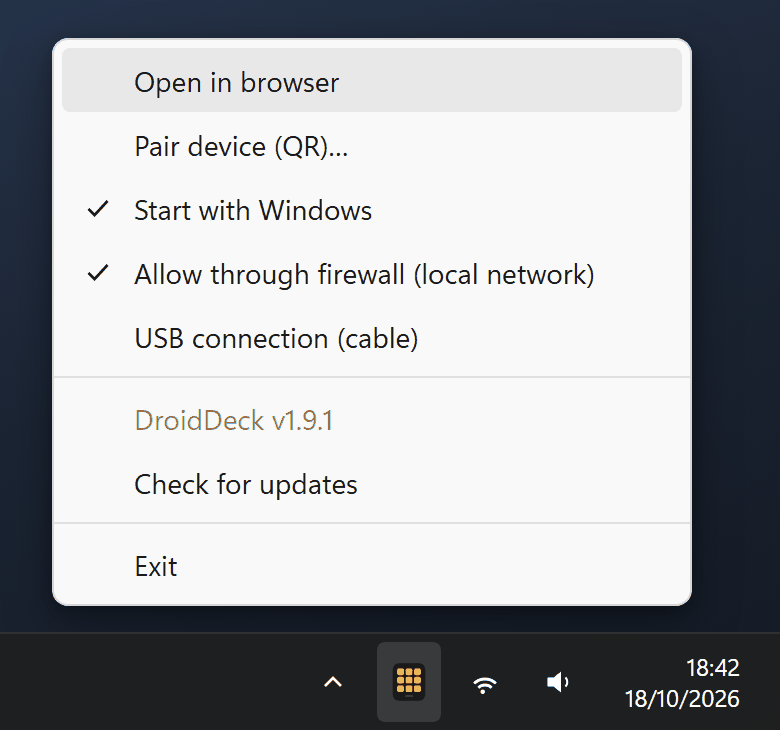
What each tray item does
| Item | What it does |
|---|---|
| Open in browser | Opens the configurator at http://localhost:4787/ (double-clicking the icon does the same). |
| Pair device (QR)… | Shows the pairing QR code for the phone. |
| Start with Windows | Starts DroidDeck when you sign in to Windows. |
| Allow through firewall (local network) | Adds the firewall rules. Ticked when they already exist. |
| USB connection (cable) | Connects an Android phone over a USB cable. |
| Check for updates | Checks for a new version; once one is downloaded it becomes Restart to update. |
| Exit | Quits DroidDeck. |
Firewall
The phone connects to the PC on TCP 4787, and automatic server discovery uses UDP 7573. The installer offers to open both on first run. If you skipped it, use the tray item Allow through firewall (local network). Windows asks for administrator permission, and the rules only accept devices on your local subnet, even if the Wi-Fi is marked as a Public network.
Add the rules by hand
In an elevated PowerShell:
New-NetFirewallRule -DisplayName "DroidDeck (TCP 4787)" -Direction Inbound -Protocol TCP -LocalPort 4787 -RemoteAddress LocalSubnet -Action Allow
New-NetFirewallRule -DisplayName "DroidDeck discovery (UDP 7573)" -Direction Inbound -Protocol UDP -LocalPort 7573 -RemoteAddress LocalSubnet -Action Allow