Pairing
Pairing gives the phone the PC's address and a secret API key. You only do it once.
Pair with a QR code (recommended)
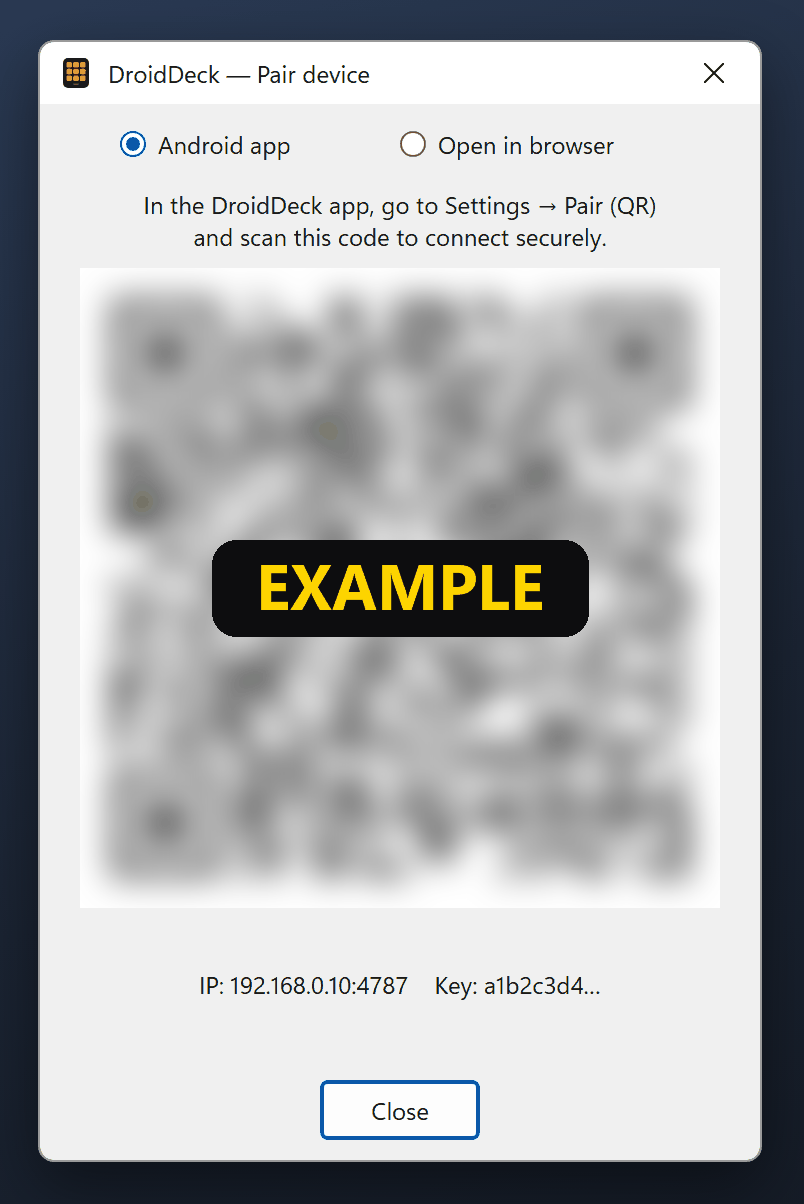
- On the PC, right-click the tray icon and choose Pair device (QR)…: the pairing window opens with Android app selected.
- On the phone, open DroidDeck. On first launch the settings screen opens; otherwise tap the gear on the Audio tab.
- Tap Pair (QR) and scan the code.
You're connected
The status chip in the deck's top bar turns green and reads:
Connected to GAMING-PC
with your PC's name instead of GAMING-PC (over a USB cable the icon is a plug). The phone saves the address, port and key, and reconnects by itself from now on. If it says Reconnecting… or Not connected instead, see If the phone doesn't connect.
Next: make your first button.
What is inside the QR code
droiddeck://pair?ip=<LAN IP>&port=4787&key=<api key>: the PC's LAN address, the port and the
API key. Treat it like a password. Anyone who scans it can control your PC through DroidDeck.
iPhone, iPad or no Wi-Fi?
Pick Open in browser at the top of the same window for a QR code that opens the deck in any browser. An Android phone can also connect over a USB cable. See Browser & USB.
If the phone doesn't connect
- Check that the phone and the PC are on the same network, and that the tray item Allow through firewall (local network) is ticked.
- If the phone shows "Authentication failed (invalid or expired key). Pair again.", scan the QR code again.
- More fixes in Troubleshooting.
Other ways to connect
Find the server automatically
Search for server broadcasts on the local network (UDP 7573) and fills in the PC's IP address. Discovery does not send the API key, so you still need to pair with the QR code before the phone can connect.
Enter the address manually
Type the PC's IP in Server IP (192.168.0.10 or 192.168.0.10:4787) and tap Save.
An API key from an earlier pairing is kept.
Resetting the key
The key is stored on the PC in %LocalAppData%\DroidDeck\apikey. To revoke access for every paired
phone, quit DroidDeck, delete that file and start it again. A new key is generated, and every phone
must pair again.
Connection behaviour
The phone reconnects by itself if the PC restarts or the Wi-Fi drops. It retries quickly at first (0, 2, 5, 10, 20 s) and then every 30 s, indefinitely. Tap the status chip to see what to do and, under Technical details, the connection URL (with the key masked) and the last data received.