Your first button
With the phone paired (the chip at the top of the deck reads Connected to your PC), make a button that plays and pauses whatever is playing on the PC. It takes about a minute and shows the whole loop: edit on the PC, tap on the phone.
1. Open the configurator
On the PC, right-click the DroidDeck tray icon → Open in browser (or double-click the icon).
The configurator opens at http://localhost:4787/ and signs in by itself.
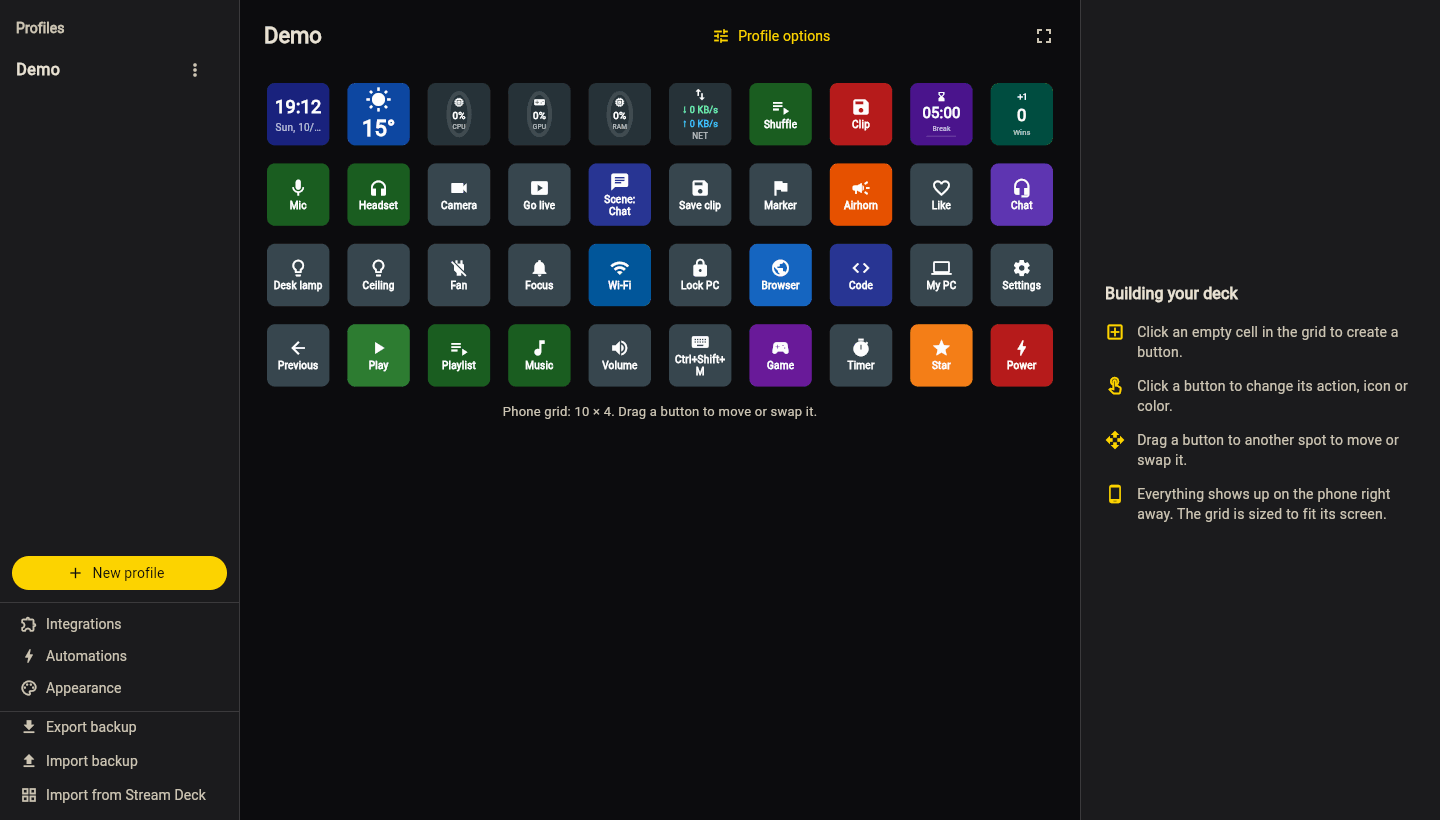
Until you select a button, the right panel is a short guide:
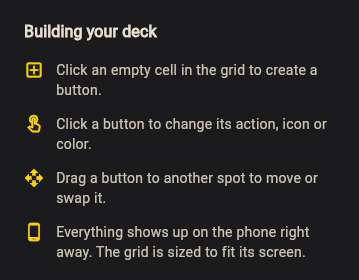
2. Add the button
- Click an empty cell in the grid. The properties panel shows a new button.
- Under Action, choose Media.
- Leave Command on Play / Pause. You can leave Label empty: media buttons fill it in.
- Click Save.
The button appears on the phone right away; there is nothing to sync.
3. Tap it on the phone
Start some music or a video on the PC (Spotify, YouTube in a browser, any player) and tap the new button on the phone. Playback pauses, and the icon switches between ▶ and ⏸ to match.
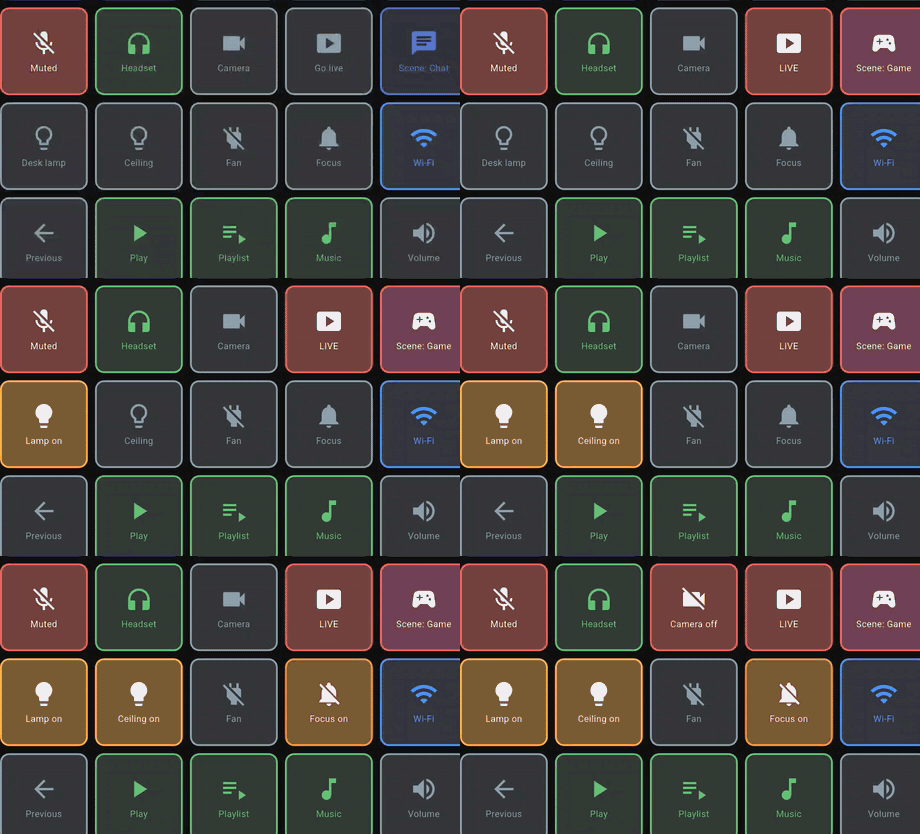
That's the whole loop. Buttons that have an on and off state light up when they're on, like these:
Prefer to edit on the phone?
Tap an empty cell on the phone to create a button there, and long-press a button to edit it. Buttons that send keys, open programs or run scripts can only be created on the PC; see Configurator.
What next
- Buttons & actions: every action type, from keyboard shortcuts to timers.
- Integrations: Discord, OBS, Spotify, smart lights and more.
- Automations: buttons that press themselves at a time or when an app opens.
- Import from Stream Deck: bring your Elgato profiles over.
- Profile gallery: ready-made decks to start from.